‘Follow me’ links for WordPress
August 1, 2011 Leave a comment
If you are looking to grow your followers from your blog readership, then it’s a good idea to make it simple. Providing your readers with an option to follow you on Twitter, LinkedIn or other social media sites through profile links is a good start.
The three links I’ve used on the right of this page (unless you are viewing this article on a smartphone!), are done using text widgets.
I’m no expert here, having just been learning this myself – but here’s how I did it.
In your WordPress menu, go to Appearance/Widgets. Then drag the ‘Text’ widget across to the Sidebar (You’ll do this once for each link).
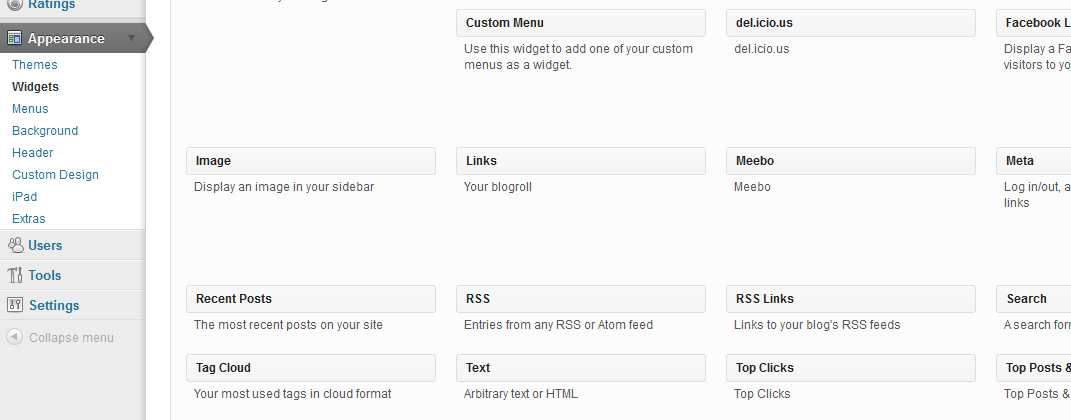
Then in each of the links I placed the text in the shaded boxes below (I didn’t use the ‘Title’ box).
Of course you will need to replace my name/details with your profile link details.
1 –Twitter
twitter-follow screen_name=’marcfabris’
I have omitted the brackets (‘[‘ and ‘]’) that need to appear at the start at end of the above code, so that the text would show! You will need to add these.
Twitter is simple enough, as it’s included in WordPress. You’ll just need to enter your Twitter username in place of mine. This is the name that appears after the ‘@’. If you are not sure, log into Twitter.com, and your username will appear in the address bar of the browser window.
2 – LinkedIn
<a href=”http://au.linkedin.com/in/marcfabriszurich”><img src=”http://www.linkedin.com/img/webpromo/btn_viewmy_120x33.png” alt=”View Marc Fabris’s profile on LinkedIn” width=”120″ height=”33″ border=”0″ /></a>
For LinkedIn, I signed into LinkedIn and went to my profile, clicked ‘edit’ next to my public profile, and then chose the option ‘create a profile badge’. You can then copy the text from your preferred icon, and paste that text into the WordPress text widget.


3 – Google Plus
<a href=”http://gplus.to/marcfabris”><img class=”alignleft size-full wp-image-56″ title=”googleplus” src=”https://marcfabris.com/wp-content/uploads/2011/08/googleplus.png” alt=”View my profile on Google+” width=”119″ height=”37″ /></a>
For Google Plus, I inserted my saved Google Plus image into a new blank WordPress post, then entered the link URL (for the image) as being my Google Plus profile ‘http://gplus.to/marcfabris’ (this is my shortened URL which you can do at http://www.gplus.to).

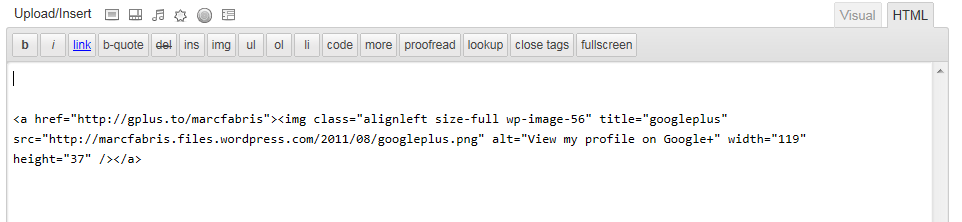
I then viewed the post in html, and copied the html text that had been generated for me! I then pasted this text into my text widget.
So there it is, not necessarily that pretty, but it worked.
 About Marc Fabris

 Marc Fabris

