Using ‘Follow me’ links
August 1, 2011 Leave a comment
If you have been wondering how to add those ‘Follow me on Twitter’ or ‘View my Profile on LinkedIn’ links to your email signature or other electronic communications, then here’s a couple of quick pointers.
There are two key elements here – firstly it’s a good option to have a neat looking icon or graphic (rather than just text), if you do use one of these, you will need to add a hyperlink to it.
If you’d prefer to keep it simple, then you can just use the profile links (as shown below) shown as text, and most web pages or email readers will automatically recognise the text as being a hyperlink to a web page. This hyperlink will direct a user to your desired profile page.
If you do use a graphic or icon, you may find that it needs to be one that is acceptable/authorised if you use a branded graphic (such as the Twitter ‘bird’).
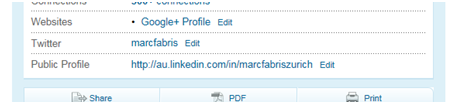
Your LinkedIn profile link is available by entering your profile (on the main navigation menu), and then copying the ‘public profile’ url (web address) – it should look something like this: http://au.linkedin.com/in/marcfabriszurich.
Twitter
Your Twitter profile link is simply your username at the end of the twitter homepage like this: http://twitter.com/marcfabris.
Twitter are fairly prescriptive when it comes to using their logo/s. They have a number you can choose from on their support site at http://twitter.com/about/resources/logos. Or if you are using a common blogging application, it probably has a simplified option for adding Twitter links (search for Twitter in the help or resources area of your blogging service).
Google Plus
The standard link to your Google Plus profile isn’t the simplest, however you can use a third party site – such as Google Plus Nick at http://gplus.to to set up a shortened profile link.
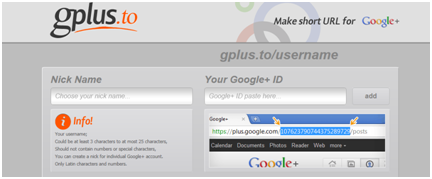
To do this, you need to find your Google Plus profile link, which you will see by entering your own Google Plus posts page, or by going into settings.
The link looks like this: https://profiles.google.com/110055908118537535620. In gplus, you should then copy the long number at the end of this profile link, to set up a shortened profile like this: http://gplus.to/MarcFabris. Go to http://gplus.to where you will find good instructions to help you.
There are quite a few resources around the web for Google Plus icons. If you’d like to check Google’s guidelines then have a read here http://www.google.com/permissions/guidelines.html, although they haven’t specifically updated this for Google Plus profile links.
The link to your Facebook profile page will appear in the address bar of your web browser when you go to your profile, for example: http://www.facebook.com/[yourname].
Go to http://www.facebook.com/help/search/?q=facebook+logo for information on using logos etc, or to http://www.facebook.com/badges/profile.php where you can obtain a direct link for your profile – great for using on blogs as well.
Hopefully you find this helpful!
 About Marc Fabris

 Marc Fabris