Portable power

Ever find yourself low on charge with your phone – at the most inopportune time?

Well there’s a few options to make life a little less risky now – battery-wise at least.

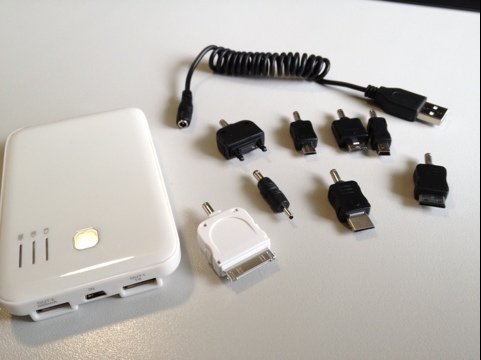
Since I do a fair amount of travel, and rely on a combination of phones and iPad, I recently purchased a portable battery charger. There are quite a few alternatives though, including ones dedicated to iPhone.

What’s the point?

Portable chargers allow you to charge your mobile device when you don’t have a power point or car charger handy. As long as you’ve ‘juiced up’ the charger before leaving home – it will take you from low battery warnings to a decent level of charge.

Which device do you need to keep charged?
I use a combination of Apple and Blackberry products, so I decided on a universal charger – and found one with dual charging options, which can charge two devices at once!

Using your iPad on a long flight and worried about the battery lasting the distance? Or travelling between client meetings and wondering whether the short-lasting iPhone battery will make it? Help is on the way.

20120226-201238.jpgDoes size matter?

The charger I’m using is slightly larger than an iPhone, and has a fair amount of power to it. Although slightly cheaper versions may only provide 50% charge to an iPhone – this one fully charged an iPhone, and gave around a quarter charge for an iPad. Smaller chargers are available – if all you need is an emergency charge option, in a smaller package.

Whether you are after an emergency charger that can keep you topped up in case of emergency, or one that can do a little more – I highly recommend keeping one handy – particularly if you often find yourself on the road and away from charging options.

Here’s the link to the one I purchased ($51.95 Aus)
Portable Charger

Data roaming – the costs of overseas travel

There’s been a lot of recent press around the massive telco bills that some users are getting when travelling overseas with their smartphone.

A Google Australia search on “huge data roaming charges’ currently yields 143,000 results. So it is an issue.

How do you switch data roaming off?

Here’s some quick directions for a couple of the more common smartphones, if yours is not in the list, a quick internet search for “turn off data roaming” for your phone model will likely be helpful.

  • For iPhone – go into Settings / General / Network, and set “Data roaming” to Off.
  • For Samsung Galaxy S2 – go into Settings /Wireless and network / Mobile networks, and ensure “Data roaming” is not ticked (should be grey).
  • For Blackberry Bold 9900 – Go into Manage Connection (or via options) / Networks and Connections / Mobile Network, Data Services is normally selected as “On”, but change “While Roaming” to Off.

There is a chance, that even with Roaming off, that there will still be data downloads (or other call related charges) while overseas. You might consider contacting your telco prior to overseas travel, and restrict your account to disallow international usage. This includes voicemail and call diversions. Just picking up voicemail or a diverted call while overseas can be very costly.

But I still want to use my phone and access the internet!

One of the best solutions for this is to get your hands on a local sim card, with a pre-paid phone and data plan (normally a month at a time). This is by far the best solution cost-wise. These are normally available at mobile phone retailers and convenience stores. Compare prices and what you get in respect of call allowance, and the amount of data included. On a recent trip to South Africa, I picked up a sim card (I think it was Vodacom) with a fair call allowance, but more importantly 500MB of data included for less than $100 Australian dollars (this was my total spend – no extra for the few calls or data – largely because I used Viber as well as Skype on WiFi – see below).

Potential cons though:

  • If you keep your phone contacts on your sim card rather than on the phone, you won’t have easy access to your contacts after swapping the sim card (consider moving contacts to your phone – but make sure they are first backed up online or on your PC/MAC).
  • Since you will be on a local phone number, it’s not so easy for people to call you (maybe this is a pro!)

My suggestion to help overcome this is to use internet based apps (for calls, text, video).

A couple of applications you might consider are:

Skype – you can use this for instant chat, messaging, audio calls, or video calls

Viber – a great little app for text messaging or phone calls

For either of these two, each user must have the application installed – but this isn’t a bad idea even for usage within Australia, as you will be using data rather than call allowance (I’m assuming you have a reasonable amount of data included in your phone plan of course).

A big advantage with these apps though, is that your contacts are still available to you when you change phones/sim cards etc.

Important note – should you use these types of apps overseas (Skype/Viber or similar) – and you use them while global roaming – it will cost a small fortune. Use a local sim card with a reasonable amount of data, or hotel/cafe WiFi.

Don’t forget to also take advantage of WiFi where you’re staying, this will lighten the load for any data usage, even if you’ve obtained a local sim card.

So what will Data Roaming cost?

A lot!

You can estimate your download requirements and cost from the major telcos (as well as other general roaming information), so it would be wise to do so before travelling ..

What about tablet (iPads etc)?

The same issues around data download apply, but not so much the phone calls. You should go into the device settings and switch data roaming off. It may not be as simple to get the right sim card overseas – micro sims (used in iPads) are generally less common than standard sim cards, but a little more looking, or use of WiFi, is still the better solution than the costs of global roaming.

Please feel free to post comments on your own experiences, including any of your own tips!

Mobile broadband with the new Telstra 4G

Having read some reports on the high download speeds available on 4G, I was keen to do some of my own testing.

I got hold of one a couple of weeks back, and since have had a chance to try connection speeds in Brisbane, Sydney and Canberra.

So is it all it’s cracked up to be? Well in a word – Yes. And more.

I have regularly had download and upload speeds in excess of 20Mb/s in each (Metro) location. So far the best was Brisbane, which clocked well over 30Mb/s for both download and upload.

So what does this mean?

Well if you are away from your cosy home or office ADSL connection, you can still achieve fast data speeds for emails, file downloads, and importantly – Skype!

Mobile 3G speeds (despite what you may hear) are more commonly in the 1 to 3Mb/s range, topping out (rarely) at 4 to 5Mb/s, and at times may be as low as 0.5Mb/s.

I’ve tested 3G speeds in Sydney, Canberra, Brisbane, Melbourne, Adelaide, Perth and Hobart. So we are talking about speeds (at least in CBD areas I’ve tested so far) of 5 to 10 times faster than 3G.

Let’s talk the basics first of all

3G mobile WiFi versus 4G (LTE)

I’ve been using a Telstra 3G mobile WiFi for some time, which has been very good. It’s battery-powered, and can recharge from laptop or wall charger – and lasts for many hours. From this unit you can connect up to 5 devices, particularly useful if you also travel with an Apple TV (for when you want to stream movies/music or other content from your iPhone/iPad etc to a plasma – for work or play).

The new Telstra 4G (LTE) is a little different.

Firstly it must be plugged into your laptop/computer to operate. So it is ‘mobile’ but not ‘sit-in-your-pocket’ mobile.

Secondly it doesn’t provide mobile WiFi connections like my 3G one does (but see below for how to get around this).

Thirdly – it’s much, much faster in Metro areas. It will even give some ADSL connections small speed syndrome.

Setting it up

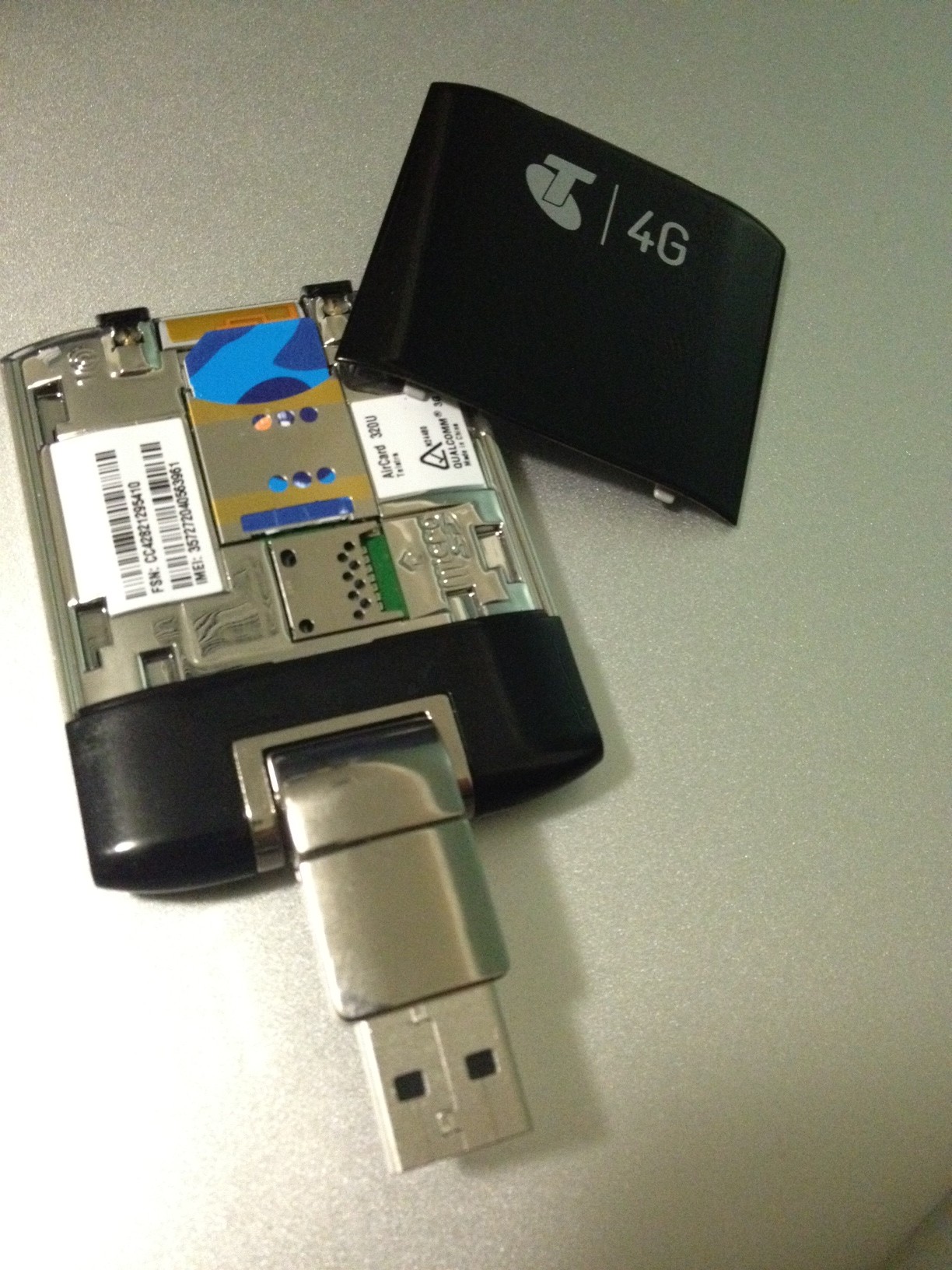
The unit itself uses the standard size sim. Note that it’s not the sim card that’s special, but the unit itself. Since it is fast though, you might want to review your download allowances in your mobile plan, else you might use it up before you know it!

If you don’t read the manual (and who really does read them), then you need to squint very hard to see which way the sim card goes in.

Here’s a pic to make it easier, the blunt corner of the sim is to the top left.

Once it’s plugged in, I found it a very simple process to get up and running.

It’s a lot more painful to get Telstra to get your account set up than to get this unit working. It’s lucky for Telstra that no-one comes close in broadband coverage and speed.

Once it’s working, then it’s plug and play thereafter. Just choose ‘connect automatically’ in the program settings (which present themselves to you once you plug the ‘dongle’ in), and that’s all that’s needed.

I find it connects within 15 or so seconds of being plugged in, without lifting a further finger.

Mine is plugged into a Mac Air, which allows me to share the connection and create your own wireless (WiFi) network, as noted above, this is useful when using an Apple TV and internet speed matters – if you are using YouTube for example.

What I’m really keen for is the release of future devices that use 4G. If the iPad3 comes out without 4G, I will be very disappointed. Same goes for the iPhone 5.

For these devices, particularly the iPad, the online experience, email downloads and even many applications that connect to the internet, will be greatly improved with 4G.

So for me, 4G gets 4 stars. If it worked unplugged, it would be an easy 5!

Post Script ..

Melbourne CBD test today (5/12/2011) 3G ~ 8Mb/s download, 1.5Mb/s upload and 4G ~ 29Mb/s download, 15Mb/s upload.
 

My favourite iPad apps for business

Like many other users of the iPad, I have found it to be a great tool for both business and pleasure.

But focusing for a moment on the business apps that I use most effectively day to day, these are a few that are worth a mention.

Keynote

This is almost a must for iPads, as one the best uses for a tablet is as a visual presentation aid. Although the iPad version of Keynote has a little less functionality than the full version, you can still develop and deliver impressive presentations. Or you can simply use presentations developed on PC or Mac (it also works with Powerpoint slides).

GoodReader

Although I prefer iBooks for storing and viewing PDF files, GoodReader is great for getting files of various types from the web, such as PDFs or presentations. One of the newer features which is quite useful, is annotations, which allows you to mark up PDF documents (text/notes/highlights etc) and save/send them.

Evernote

This is a great note taking application. The notes aren’t incredibly pretty as the app lacks a formatting function, [edit 24 August 2011 – the latest upgrade includes basic formatting options – a great improvement] but the ease of taking notes, tagging them, and finding previous notes is excellent. Additional features that I have found useful include adding photos or audio to your notes. You can also use your assigned evernote email address, which means you can email tweets, weblinks or notes directly into your evernote account for later retrieval or tagging. The app synchronises online as well, so you can access or edit your notes from your iPad, online or on your iPhone.

Docs to Go

This app (Documents to Go) allows you to view or edit a wide variety of files, including Microsoft Office Excel or Word documents. You can also sync files to online services such as Google docs or Dropbox.

Dropbox

This is an online file storage or ‘Cloud’ service. The app allows you to access these documents locally, with the option of saving or just keeping online. When installed on a PC, a local Dropbox folder is setup, which automatically synchronises to Dropbox online. This allows almost instant access to your files online or via the iPad or iPhone application. If you need to access a file from wherever you are, this is a great option.

Airsketch

Who needs a whiteboard on the wall when you have a mobile version on your iPad? AirSketch is one of many great apps which allow you to take hand drawn notes or draw on your iPad, and then save locally or send as a PDF or image.

FlightTrack

This app allows you to search for flights, check for delays, save your itinerary, and even check which seat looks best on your flight! You can follow flights on a map as well as a few other nifty features.

Echofon

I tend to use a few different apps for Twitter, but Echofon is the one I use most often. The interface is pretty clean, and commonly used functions such as retweets, work a little better than some other apps I’ve tried (and been disappointed with).

Flipboard

After sitting unused on my iPad for some time, I’ve just started using this app – and it’s very impressive. Its another way to look at various social media content, such as Facebook, Twitter and LinkedIn. But it does this very differently than most. The content is presented in a beautifully crafted format, much like a flash-style magazine. Although it presents content in a great way, it can mean a fair bit more time to scroll through posts or status updates.

So there it is. Not an exhaustive list, but certainly a few to get you started.

Feel free to let me know of any other apps that you find useful for business!

My favourite iPad apps for fun

One of the best ways to get used to using an iPad is with games. At least that’s been my excuse.

These apps are ones which often find themselves open on my iPad.

Footy Live HD
For lovers of Australian Rules Football (AFL). This is one of the better designed apps out there, easy to use, good content and of course it caters for the greatest game of all!

Shazam
Ever heard a song on the radio and wanted to know it’s name or the artist? Open Shazam, start it listening, and fifteen seconds later it will tell you (99% of the time I reckon) the name of the song, the artist, and give you links to lyrics, the iTunes download etc etc. If you haven’t tried this yet, you’d be one of the few. Definitely one of the coolest iPhone/iPad apps out there.

Words for Friends
Like Scrabble? This app lets you play games with your friends at a distance. Have multiple games going at once, which might last over a number of hours, days or even weeks!

Zynga Poker
Zynga is one of the more significant players in the gaming space. This app brings the popular Facebook friendly application onto iPhone and iPads. You can gather chips for free, or throw a few dollars in for some if you are impatient.

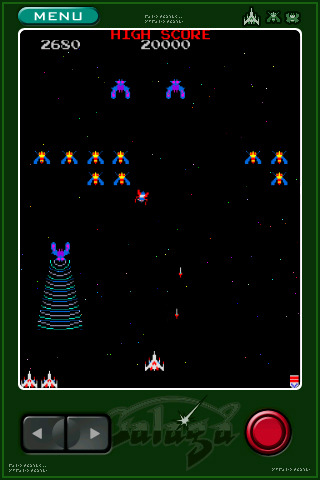
If you are still caught in the eighties, then help relive the old times with Retro – Invaders HD (remember space invaders) or

Galaga Remix. Just the game sounds are enough to take you back to the pastels, perms and preening of the times.

Like most others, I have also suffered addiction at the hands of Angry Birds. Incredibly clever app. And it makes it too easy to waste away time late into the evening. It’s worth a look, just to appreciate the quality of the development behind it.

Any others that tickle your fancy? feel free to add your favourites in the comments below.

My favourite iPad apps for the kids

If you have an iPad, and one or more children over the age of 6 months, then it is likely you have already fought over control of your ‘pad’.

The iPad has an amazing ability to draw sustained focus of children no matter what their age.

The apps that my little ones (all under 9) have seemed to prefer (and which I have generally provided approval) include:

Talking Tom
I introduced this app to my kids by sending them a recorded good night video message while I was away traveling. The recording was my voice (with more than a slight enhancement) projecting from a interesting looking cartoon character cat. Apparently it took some time for the giggles to subside. There are a number of other ‘Talking’ character variations. Try one of the many free ones for fun.

My First Words – Flashcards by Alligator Apps
If you have a child learning to speak or learning to read, this is a great learning tool. It has numerous flashcards in a variety of categories. If you choose the ‘Play’ mode, it can show pictures with multiple choice answers for the appropriate word – which your child needs to select correctly. What I really like, is the customisation it allows. You can re-record the voices, to avoid introducing undesired accents into your child’s vocabulary, as well as creating new pictures and words of your own. It seems a little ‘buggy’ still, but it still works well.

Lazy Larry
Lazy Larry the Lizard is one of many fantastic interactive books that easily engage the young reader.
A couple of other interactive books that the kids have enjoyed are How to Train Your Dragon and Toy Story.
Like me, the kids have trouble putting Angry Birds down, and have also enjoyed Cut The Rope. Both are simple enough to play, but difficult to play well. And they are very addictive!

I’d also take a look at the numerous musical apps, including Drums (I have micro edition) which lets you tap on your iPad drum set, or for piano the Virtuoso app works for one or two at a time.

This is only a few out of the massive number of apps available for kids, but among them, many hours of joyful entertainment for the young ones!

Do you have others that your children love to play? Any great apps for educational purposes that you have found. Let me know in the comments below.

My favourite iPad apps for home entertainment

There are a few apps that I find handy around the home, I’ve chosen a couple to highlight here which I tend to use a bit.

Apple Remote
This is a pretty simple app, as it’s basically a remote control. But pair it with your Apple TV on your home WiFi, and it’s a great way to drive your home audio. You can use it simply as an alternative Apple TV remote (much better than that fiddly little grey one that keeps hiding under the cushions), or to play your iTunes music (on your PC or Mac) through your Apple TV or Airport Express. (Just as an aside, the Apple TV is one of my favourite gadgets – I also use it to play videos or show photos on my TV directly from my iPad).

Flixter
Watching a movie and can’t wait til the credits to find out who the main actor is? Want to know which movies are currently playing in your local cinema? Find yourself at a dinner trying to remember what year a certain movie was released? These are some of the uses I have put this app to.

Splashtop
I use this app to control my home PC with my iPad. Load the software on iPad, load the software on the PC, pair them through your WiFi network and you then see your PC on your iPad. You can then control the PC through gestures, or with the keypad. This is one way to watch Flash video on your ‘pad’.

Photogene
This is a photo editing app. It covers the basics pretty well, like cropping or reducing red-eye – as well as other effects and borders. You can also upload to various Social Media sites from the app – such as Twitter or Facebook.

Any more apps that you find useful at home? Feel free to add your own comments.