Search engine optimisation – without the cost (being found online)

Why are online search results important?

Don’t assume that search results are simply about finding new clients online. Potential or existing clients, referral sources and other key contacts are likely to ‘Google’ you to: find your phone number, check your address, check what you look like, get a better feel for your business and other staff, check your credentials and many other reasons.

So you need to make it as easy as possible to be found, and then ensure a simple process for your audience to navigate to the information they seek.

So here’s a few tips to think about.

1. Be present on key social media sites

It costs nothing and very little effort to improve search results through the use of social media.

First you’ll need to set up your profile on these sites, for yourself and for your business, and then you need to regularly post content. The time commitment is up to you. Good results can come from posting on some sites every few weeks, but weekly updates will reap even greater dividends. Daily is great, but you’ll probably find that’s not necessary. We’re not talking about marketing strategy here, we’re talking about some simple, low cost tactics which can make a significant difference.

The sites to consider should at least include Google Plus, Facebook, Twitter and LinkedIn.

You should also create your own ‘channel’ and post videos on YouTube. These can be produced at little or no cost and still create a great impression (and get their own special place in Google search results).

Blogs are effectively an online newsletter, where less is more. There is no pressure to write anything more than short updates or information that is to the point. And blogs  achieve great Google search results very easily. Think about WordPress or Blogger. You can make these part of your website, or reside separately (for a very, very small cost).

2. Ensure your website includes content that relates to search terms

In the past, web designers would load up meta tags and headers in web pages with key words. This is content that you don’t see on a page, but sits in the code behind it. Google figured this out, and reengineered search results so that the focus was more about real content rather than layers of useless information behind the curtains. So make sure that you have a good level of relevant content on your pages, and that this content includes the terms that your desired audience will type into the Google Search panel.

3. List your business in Google Places and Yelp

     Yelp logo

You have probably noticed that Google Search results includes business names and addresses, particularly when you add a location in the search panel – for example ‘Financial Planner Sydney’. To get yourself appearing can be helped with a few simple steps:

  • Register your business details in Google Places, go to the site (google.com/places), and begin by clicking on ‘Get started now’. Doing this will not only help search results, but also ensure you appear in Google Maps, which leads me to Yelp.
  • Register your business details in Yelp. You may have heard the concerns for businesses following Apples decision to replace Google Maps with their own Maps application with iOS6. An important ramification here, is that Apple’s Map application sources business listings from Yelp. And believe it or not, many people search for businesses using a Maps application rather than Google. It’s an easy way to check location, phone numbers or get directions. So make sure you are found by going to biz.yelp.com.au, and set up your business profile.
  • This should be a given, but make sure you include all your contact details on your website!

4. Consider microsites

You don’t need to limit yourself to a single website. microsites are commonly used to improve search results, provide some content, and direct traffic to the main site. They can also be replicas of the one site simply at different internet addresses (URLs).

And if you want results when people are looking for you on Google.com.au, don’t be a cheapskate and just register .com sites, you will get better results by using .com.au. Otherwise you might find yourself filtered out of search terms.

5. Apply the in-app purchase paradigm

When it comes to content creation, I like to use the Apple AppStore analogy. It’s been suggested that 2/3rds of the revenue from the AppStore comes from in app purchases. Developers clearly do well in sparking interest in their application for low or now cost, and by being able to generate interest many successfully up-sell, either to a ‘Pro’ version of the app, or more content, more levels etc.

So think about trying to drive people to your site by providing real content and value. If you first can demonstrate real value-add, then the interest in you and what you can offer will follow – and the content will of course improve search rankings!

And you’re done!

Well not quite, there’s always more to do, but implementing these few steps will be surprisingly effective.

It is also wise to test your results regularly. Googling yourself isn’t about vanity, it’s common sense.

Regularly test search results for yourself and your business. Do this not only on a PC/Mac, but also on a tablet (iPad/Samsung Galaxy Tab etc), and smartphone (iPhone/HTC etc). Is it easy to find you? And just as important – is it easy to navigate to key information? For example, is your phone number and address easy to find on an iPhone? It may just be that a client will check your address on their phone when they get lost on the way to an appointment with you!

And by the way, you can make better use of your time simply by leveraging your content across multiple platforms – for example, write a blog on Estate Planning tips, and post a link with an intro to the article on various social media sites.

Apparently you can also use an iPhone to make calls!

There are so many great applications available for the iPhone, that you can easily forget that it also works as a phone!

There are a few applications that I find myself using quite often, here are a few worthy of mention:

CamScanner
Want to take a quick copy of a document? This app allows you to take photos of documents, and has a neat cropping function.

You can also ‘scan’ multiple documents into the one file, and email it as a PDF.

The quality is excellent, as long as you have good lighting. It’s also useful to take a pic of notes on your whiteboard.

Whiteboard
There are numerous drawing apps available, but I find this to be a simple for quick scribbles.

Of course you don’t have the same screen area and ease that an iPad provides,

but it’s a good choice when you want to draw something that you can save or email later on.

360 Panorama
This is a great little photo app which allows you to take panoramic photos.

The smarts in the iPhone know where you are pointing, and basically stitches the photo on the fly.

Take a photo of your full surrounds (spin around on the spot!), and save it as a scrolling photo, or flatten as a simple (wide) shot. Very clever.

Metroview
I recently found myself in a hire car without my trusty sat nav. As handy as google maps is, it’s not functional when you need to drive.

This app provides voice guidance, and seemed to do the job I needed very well.

Evernote
I’ve previously mentioned this as being a great app for iPad, having it installed on your iPhone means you have access to your notes when your iPad is elsewhere. Your notes automatically synchronise between your devices, or can be accessed on the web. You can also use voice recordings and take photos (great for capturing notes on the whiteboard to attach to your meeting notes).

Google Search
Yes, you can use Google through Safari, but Google have just introduced this app which provides some nifty little features, including voice command searches – and they actually work!

Know Risk Insurance Tracker
A simple but functional app that allows you to keep track of all your insurance policy details, with renewal reminders and insurer details for claims.

Have you tried booking a Taxi through an app?
The right app really depends on where you are, but a couple I’ve tried include iCabSydney (which does pretty well at figuring out where you are) and Silver Service Cabs. These apps can remember your favourite destinations to make it a bit quicker for common trips. Best to check which apps service your local area, or where you plan to travel to.

Social media apps
The ones I’m most commonly using are Echofon (for Twitter), the LinkedIn app, and Google+ (great if you’ve joined this network).

Feel free to comment on any more that you find useful.

‘Follow me’ links for WordPress

If you are looking to grow your followers from your blog readership, then it’s a good idea to make it simple. Providing your readers with an option to follow you on Twitter, LinkedIn or other social media sites through profile links is a good start.

The three links I’ve used on the right of this page (unless you are viewing this article on a smartphone!), are done using text widgets.

I’m no expert here, having just been learning this myself – but here’s how I did it.

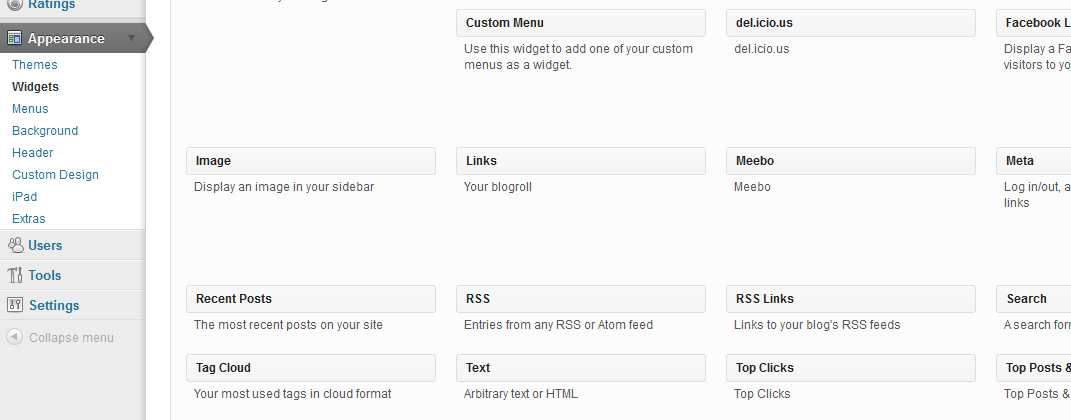
In your WordPress menu, go to Appearance/Widgets. Then drag the ‘Text’ widget across to the Sidebar (You’ll do this once for each link).

Then in each of the links I placed the text in the shaded boxes below (I didn’t use the ‘Title’ box).

Of course you will need to replace my name/details with your profile link details.

1 –Twitter

twitter-follow screen_name=’marcfabris’

I have omitted the brackets (‘[‘ and ‘]’) that need to appear at the start at end of the above code, so that the text would show! You will need to add these.

Twitter is simple enough, as it’s included in WordPress. You’ll just need to enter your Twitter username in place of mine. This is the name that appears after the ‘@’. If you are not sure, log into Twitter.com, and your username will appear in the address bar of the browser window.

2 – LinkedIn

<a href=”http://au.linkedin.com/in/marcfabriszurich”><img src=”http://www.linkedin.com/img/webpromo/btn_viewmy_120x33.png&#8221; alt=”View Marc Fabris’s profile on LinkedIn” width=”120″ height=”33″ border=”0″ /></a>

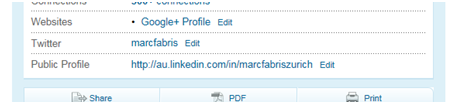
For LinkedIn, I signed into LinkedIn and went to my profile, clicked ‘edit’ next to my public profile, and then chose the option ‘create a profile badge’. You can then copy the text from your preferred icon, and paste that text into the WordPress text widget.

3 – Google Plus

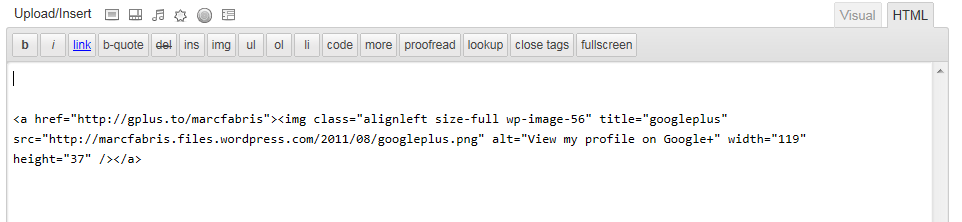
<a href=”http://gplus.to/marcfabris”><img class=”alignleft size-full wp-image-56″ title=”googleplus” src=”https://marcfabris.com/wp-content/uploads/2011/08/googleplus.png&#8221; alt=”View my profile on Google+” width=”119″ height=”37″ /></a>

For Google Plus, I inserted my saved Google Plus image into a new blank WordPress post, then entered the link URL (for the image) as being my Google Plus profile ‘http://gplus.to/marcfabris’ (this is my shortened URL which you can do at http://www.gplus.to).


I then viewed the post in html, and copied the html text that had been generated for me! I then pasted this text into my text widget.

So there it is, not necessarily that pretty, but it worked.

Using ‘Follow me’ links

If you have been wondering how to add those ‘Follow me on Twitter’ or ‘View my Profile on LinkedIn’ links to your email signature or other electronic communications, then here’s a couple of quick pointers.

There are two key elements here – firstly it’s a good option to have a neat looking icon or graphic (rather than just text), if you do use one of these, you will need to add a hyperlink to it.

If you’d prefer to keep it simple, then you can just use the profile links (as shown below) shown as text, and most web pages or email readers will automatically recognise the text as being a hyperlink to a web page. This hyperlink will direct a user to your desired profile page.

If you do use a graphic or icon, you may find that it needs to be one that is acceptable/authorised if you use a branded graphic (such as the Twitter ‘bird’).

LinkedIn

Your LinkedIn profile link is available by entering your profile (on the main navigation menu), and then copying the ‘public profile’ url (web address) – it should look something like this: http://au.linkedin.com/in/marcfabriszurich.

If this looks a little shorter than yours, then consider the option of customising the link, which you can do within your profile page (click the profile link, and you should then see the option to customise it, assuming you are logged in).

Twitter

Your Twitter profile link is simply your username at the end of the twitter homepage like this:  http://twitter.com/marcfabris.

Twitter are fairly prescriptive when it comes to using their logo/s. They have a number you can choose from on their support site at http://twitter.com/about/resources/logos. Or if you are using a common blogging application, it probably has a simplified option for adding Twitter links (search for Twitter in the help or resources area of your blogging service).

Google Plus

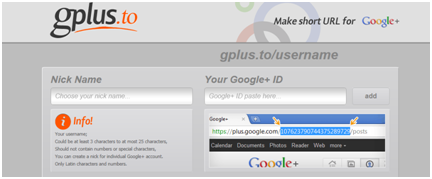
The standard link to your Google Plus profile isn’t the simplest, however you can use a third party site – such as Google Plus Nick at http://gplus.to to set up a shortened profile link.

To do this, you need to find your Google Plus profile link, which you will see by entering your own Google Plus posts page, or by going into settings.

The link looks like this: https://profiles.google.com/110055908118537535620. In gplus, you should then copy the long number at the end of this profile link, to set up a shortened profile like this: http://gplus.to/MarcFabris. Go to http://gplus.to where you will find good instructions to help you.

There are quite a few resources around the web for Google Plus icons. If you’d like to check Google’s guidelines then have a read here  http://www.google.com/permissions/guidelines.html, although they haven’t specifically updated this for Google Plus profile links.

Facebook

The link to your Facebook profile page will appear in the address bar of your web browser when you go to your profile, for example: http://www.facebook.com/[yourname].

Go to http://www.facebook.com/help/search/?q=facebook+logo for information on using logos etc, or to http://www.facebook.com/badges/profile.php where you can obtain a direct link for your profile – great for using on blogs as well.

Hopefully you find this helpful!